 1.
1.
Identity Pass FAQ
What is Verified ID?
- Verified ID is a managed verifiable credential service that allows organizations and individuals to issue and verify digital credentials securely.
- Instead of relying only on identity providers, it gives users control over their identity information—users choose when and where to share their details.
How do I present my Verified ID?
- Open the Identity Pass app.
- Select "Present Verified ID".
- This will launch the Microsoft Authenticator app and open the Verified ID section.
What is a government-issued ID?
- Upload a valid government-issued photo ID (e.g., passport, driver's license) and submit a selfie. Microsoft’s trusted partners will verify your identity to confirm legitimacy. Once verified, your verifiable credential is issued to your Microsoft Authenticator app.
How do I know if I have a Verified ID on my device?
- Open the Microsoft Authenticator app on your mobile device.
- Look for the “Verified ID” icon in the bottom corner.
- Tap the icon to view your VC (Verified Credential).
-
If nothing appears:
- You likely haven't been issued a VC yet
- Complete the Identity Pass verification process to receive one.
Does a Verified Credential expire?
- Yes. A VC expires one year after issuance or on the expiration date of the government-issued ID, whichever comes first.
- The expiration date is displayed in Microsoft Authenticator.
Why does Microsoft request verified credentials from a trusted IDV?
- Bad actors increasingly use sophisticated techniques like consent phishing and impersonation.
- Verified credentials from trusted ID verification vendors help reduce identity fraud and protect Microsoft’s ecosystem.
Is the verification provider trusted and secure?
- Yes. Microsoft uses vetted third-party providers and Azure Face API to securely validate identity
What email ID should I use during legal document verification?
- Use your personal email ID and personal mobile number (used for PIN verification).
- Do not use your microsoft.com email—you won't have network access yet, and the process will fail.
What happens if I don't share my Verified Credential (VC) with Identity Pass?
- This step is mandatory for network access.
-
Failure to present your VC and follow the in-app instructions will result in:
- Blocked access to the Microsoft network
- Incomplete onboarding
Why is this feature being introduced?
- Identity Pass now requires government-issued document verification to strengthen Microsoft's identity assurance.
- This helps prevent impersonation and supports Microsoft's overall security posture.
What documents are accepted?
- Any valid government-issued photo ID from your country.
Who needs to complete legal document verification?
- Microsoft new hires (FTEs)
- Interns
- Externals/vendors who are provisioned with @microsoft.com accounts and required network access.
How does the process work?
- Open the Identity Pass app and provide consent.
- Submit your government ID and selfie.
- A trusted IDV validates authenticity and performs face matching (Azure Face API).
- If successful, a Verified Credential (VC) is issued, and you continue the instructions in Identity Pass.
What happens if verification fails?
If you have attempted multiple times and still do not receive a VC:
- Contact Global Helpdesk (GHD) and say: "VC issuance failed / trouble receiving VC."
- The internal support team will assist further.
How long is my data stored?
- Legal document images are not retained.
- Identity Pass does not store your legal ID data.
What if my phone dies or the request times out?
- Reopen the app and complete the request.
- If you already submitted your documents, wait for manager approval or retry after the timeout.
Where can I get help?
- Contact Global Helpdesk (GHD) for any assistance.
Can I use the same Verified ID for multiple processes?
- Yes. Once issued, a Verified ID can be reused for other Microsoft identity verification flows.
Do I need to repeat verification if I change devices?
- You may need to re-add your Verified ID to your new device via Microsoft Authenticator.
How do I obtain a Verified Credential for Partner Center?
When Identity Pass prompt for "Do you have verified ID"
- Select "No, I don't have Verified ID on my device".
- You will be redirected to a trusted IDV.
- Provide your government-issued ID and take a selfie.
- Once verified, the IDV issues a VC stored in your Microsoft Authenticator app.
What do I need to complete the identity verification process?
- A government-issued ID (passport or driver's license)
- A mobile device (iOS or Android) with Microsoft Authenticator installed
How long does the identity verification process take?
- Plan for approximately 15 minutes.
How to Install Microsoft Authenticator App (Without Signing in Yet)
-
Go to the App Store / Play Store
- iPhone: Open Store
- Android: Open Google Play Store
- Search for "Microsoft Authenticator".
- Tap "Install" / "Get" to download the app.
-
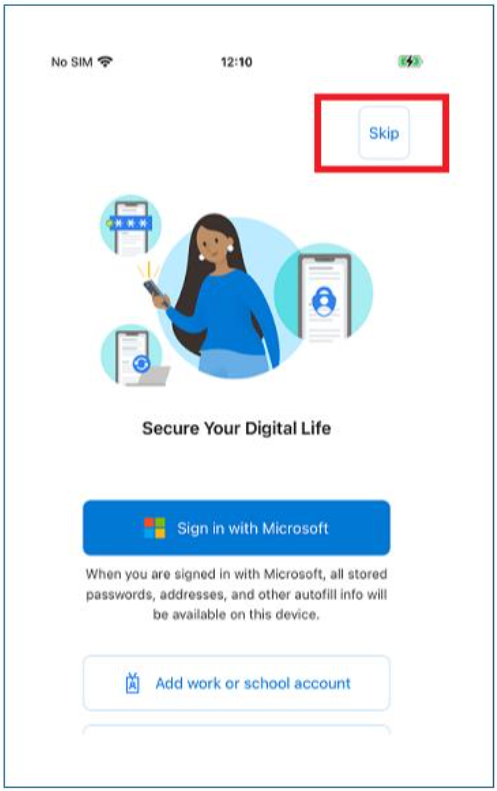
Open the App — but do NOT sign in.
- When the app asks you to an account or sign in, simply skip it.
- You do not need to log in at this stage.
-
The account will be added automatically later when you click the deep link from the onboarding flow.