 1.
1.
How to recover a HP, Dell, or Lenovo Windows 11 PC using the Reset Device tool Create USB option
This guide provides comprehensive, step-by-step instructions on how to download the Reset Device tool onto a Microsoft Corporate managed device to create a USB drive for recovering a HP, Dell or Lenovo Windows 11 PC. To learn more about the Reset Device tool see https://aka.ms/resetdevice.
Note: This guide is for HP, Dell, and Lenovo Windows 11 PC. If you have a Microsoft Surface device see Microsoft Surface recovery guide.
Prerequisites
-
Working Microsoft Corp managed Windows PC to download the Reset Device tool and create a USB recovery drive.
-
You'll need a USB drive with a minimum of 16 GB allocation. Note: All data on your USB drive will be deleted.
Step 1. Install the Reset Device tool
Time: < 1 minute depending on network bandwidth
Note: If you don't have a Microsoft Corp managed device, ask your manager or a peer to create the USB.
The Reset Device tool can be installed from Company Portal
-
In the Windows Search bar, enter Company Portal.
-
Open Company Portal, search for and select Reset Device.
-
Select Install.
Note: By default, the Launch when ready checkbox is selected. When you use this setting to install, the Reset Device tool automatically opens after the installation is complete.
Alternatively, the tool can be downloaded from aka.ms/resetdeviceinstaller.
-
Go to aka.ms/resetdeviceinstaller . It will automatically start the download.
-
Once the file has finished downloading, go to your Downloads folder and launch the installer. The Install Reset Device? page appears.
Note: By default, the Launch when ready checkbox is selected. When you use this setting to install, the Reset Device tool automatically opens after the installation is complete.
Step 2. Create a USB Recovery Drive
Time: 15-30 minutes depending on network bandwidth
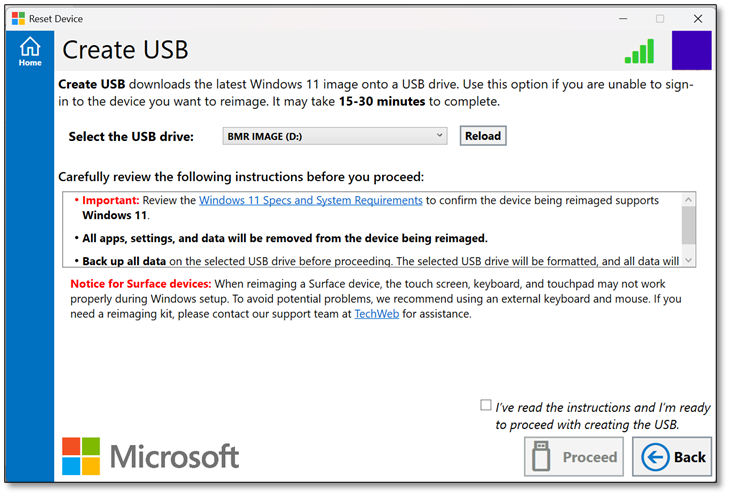
Important: Creating a recovery drive will erase everything that’s stored on your USB drive. Make sure you're using a blank USB drive or be sure to transfer any important data on your USB drive to another storage device before using it to create a recovery drive.
-
Connect a 16 GB or larger USB drive to the Corp managed device (all data on the USB will be erased).
-
Launch the Reset Device tool: In the Windows Search bar, enter Reset Device and sign-in.
-
Select Create USB and follow the instructions.
Step 3. Boot the Device from USB to Reinstall Windows
Time: 5-10 minutes to apply the image
Before using the USB to reimage the device, ensure it is connected to a main power supply and is connected to the internet.
-
Power off the device being reimaged and make sure the device is connected to power supply.
-
Insert the USB drive.
-
Restart the device and when the manufacturer's splash screen appears, press the corresponding key rapidly.
- Dell: Press F12 or (Fn+F12) rapidly and repeatedly at the Dell logo
- HP: Press F9 or (Fn+F9) rapidly and repeatedly at the HP logo
- Lenovo: Press F12 or (Fn+F12) rapidly and repeatedly at the Lenovo logo
Note: : If the Welcome to Windows Installation! page doesn't appear, select your USB drive from the list of bootable devices to proceed.
-
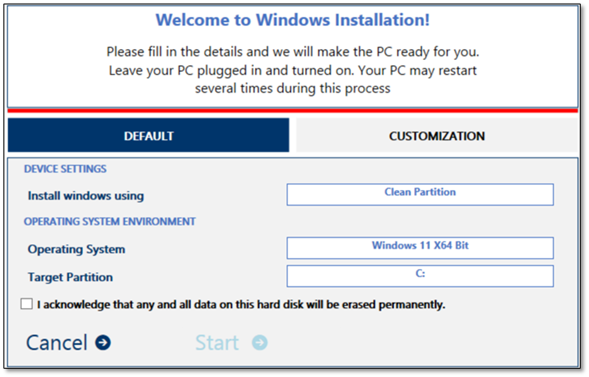
When the Welcome to Windows Installation! page appears. Continue with the default settings.
-
Select the checkbox to acknowledge that all data on the hard disk will be permanently deleted, and then select Start to continue installing the Windows 11 operating system.
-
Select Start, the installation will start on the Please wait while we install Windows page. After installation, your device will restart.
Step 4. Windows Setup
Time: 20-45 minutes to apply the image
-
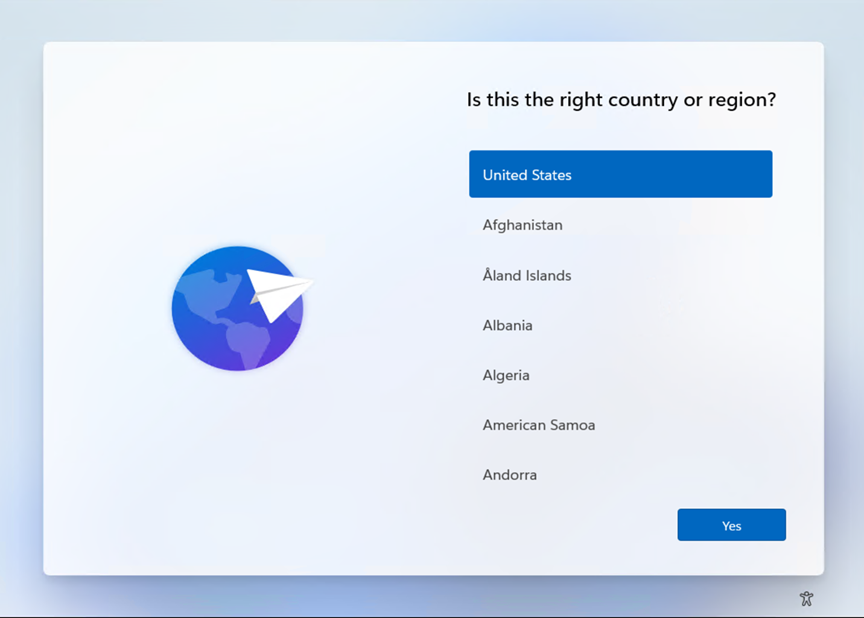
When you reach Is this the right country or region? page, follow the instructions provided at aka.ms/iamnew. If you have already completed steps 1-3, start with 4. Computer Setup (https://iamnew.powerappsportals.com/computer-setup/).