 1.
1.
How to recover a Microsoft Surface PC using a Surface Recovery Image & Recovery Drive Utility
This guide provides comprehensive, step-by-step instructions on how to download the Surface Recovery image based on your Surface serial number, create a USB with the Surface Recovery Image using the Recovery Drive utility, boot your Surface device for recovery, and complete post-install tasks.
Note: This guide is for Microsoft Surface devices. If you have an HP, Dell, or Lenovo device see HP, Dell, or Lenovo device.
Prerequisites
A working Windows PC to download the Surface Recovery Image and create a USB recovery drive.
-
A 32 GB or larger USB drive, formatted as FAT32 (The Recovery Drive utility will format the USB drive to FAT32). NOTE: All data will be erased
Before using the USB to image the device, ensure your PC is connected to a main power supply and is connected to the internet.
Step 1. Download the Surface Recovery Image
Time: 15-45 minutes depending on network bandwidth
-
Go to the official Surface Recovery Image site (aka.ms/SurfaceRecoveryImage).
-
Scroll down to the What you need section and Sign In with your Microsoft Corp credentials
-
For help locating the device serial number, select the exact Surface model (e.g., Surface Pro 9, Surface Laptop 5) in the Product drop down.
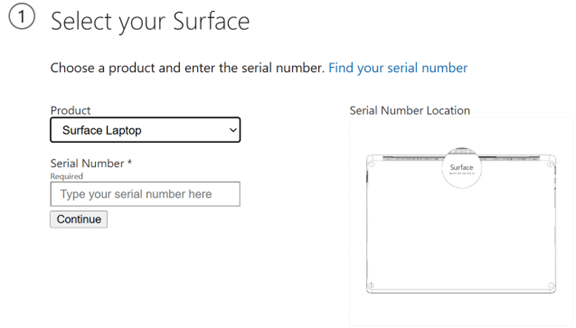
Note: Every Surface has the serial number physically etched on the chassis. Location varies by model. For more information, see On the device.
Typical locations:
- Surface Pro / Surface Go → Under the kickstand
- Surface Laptop → Under the keyboard near the hinge
- Surface Book → Bottom edge of the clipboard
Enter the device serial number.
-
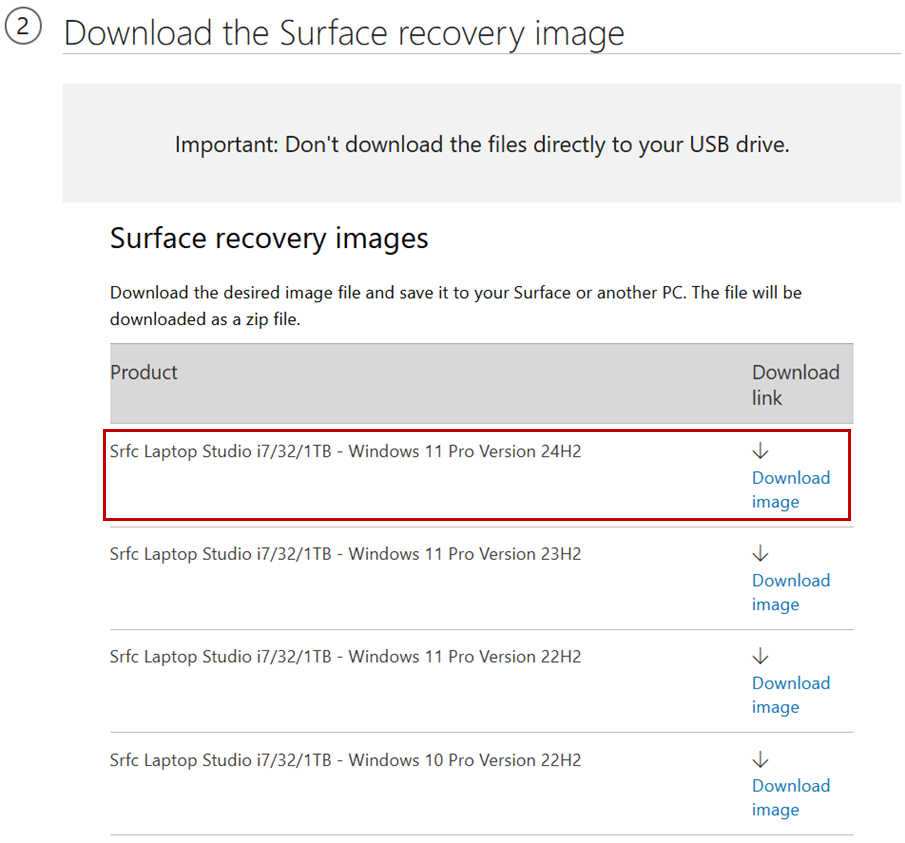
Select the latest Surface recovery image (For example, Windows 11 Pro Version 24H2 or newer) and download the recovery image ZIP file.
Step 2. Create a USB Recovery Drive on a working Windows PC
Time: 2-5 minutes
Important: Creating a recovery drive will erase everything that's stored on your USB drive. Make sure you're using a blank USB drive or be sure to transfer any important data on your USB drive to another storage device before using it to create a recovery drive.
-
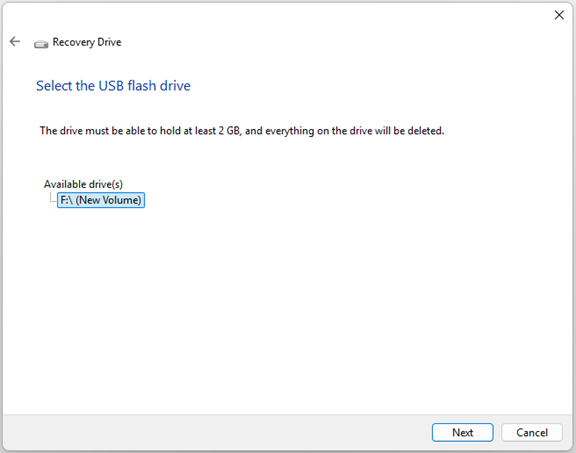
Connect a 32 GB or larger USB drive to a Windows device (Note: all data on the USB will be erased).
-
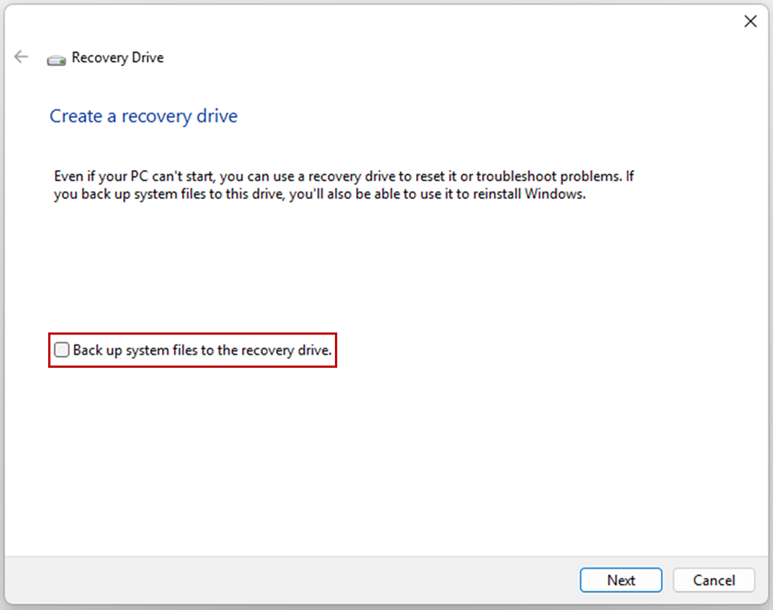
Open the Recovery Drive utility. In the Windows Start menu, search for 'Recovery Drive'.
-
When prompted, uncheck 'Back up system files to the recovery drive'.
-
Select the USB drive, choose Next, then Create.
Step 3. Copy the Surface Recovery Image Files to the USB
Time: 10-30 minutes depending on the USB and device transfer speeds
Open the Surface recovery image ZIP file that was downloaded in step 1.
-
Select and copy all files to the USB recovery drive.
When prompted, replace existing files.
-
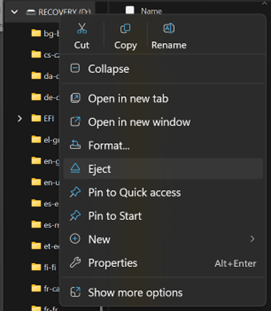
When the files are done copying, safely eject the USB by opening the context menu, right click on the USB, and selecting Eject.
Step 4. Boot the Surface Device from USB to Reinstall Windows
Time: 20-60 minutes to apply the recovery image
Power off the Surface device.
Insert the USB recovery drive.
-
Press and hold Volume Down, then press Power.
-
Release Volume Down when the logo/spinning dots appear and follow prompts.
-
On the Choose the language screen, select the language and keyboard layout to continue.
-
On the Choose an option screen, select the Recover from a drive option.
-
From the Recover from a drive screen, if prompted select Skip this drive.
-
Select Fully clean the drive option.
Carefully review the on-screen guidance.
-
When ready, select Recover to begin the Surface recovery process.
Follow prompts to apply the recovery image and reinstall Windows.
Step 5. Windows Setup
12. After Recovering this PC completes, choose your region to begin the Windows setup process.
13. When you reach Is this the right country or region? page, follow the instructions provided at aka.ms/iamnew. If you have already completed steps 1-3, start with 4. Computer Setup (https://iamnew.powerappsportals.com/computer-setup/).